


How to Add Text to Instagram Story in 5 Easy Steps
Why Adding Text to Your Instagram Story Can Transform Your Engagement
Want to add text to an Instagram Story in seconds? Here’s how:
- Open Instagram and tap + Your Story
- Select a photo or video (or use Create Mode)
- Tap the Aa icon to open the text tool
- Type your message, then customize font, color, and size
- Tap Done and share to your Story
That’s the short version. Keep reading for the full breakdown, customization tips, and creative hacks.
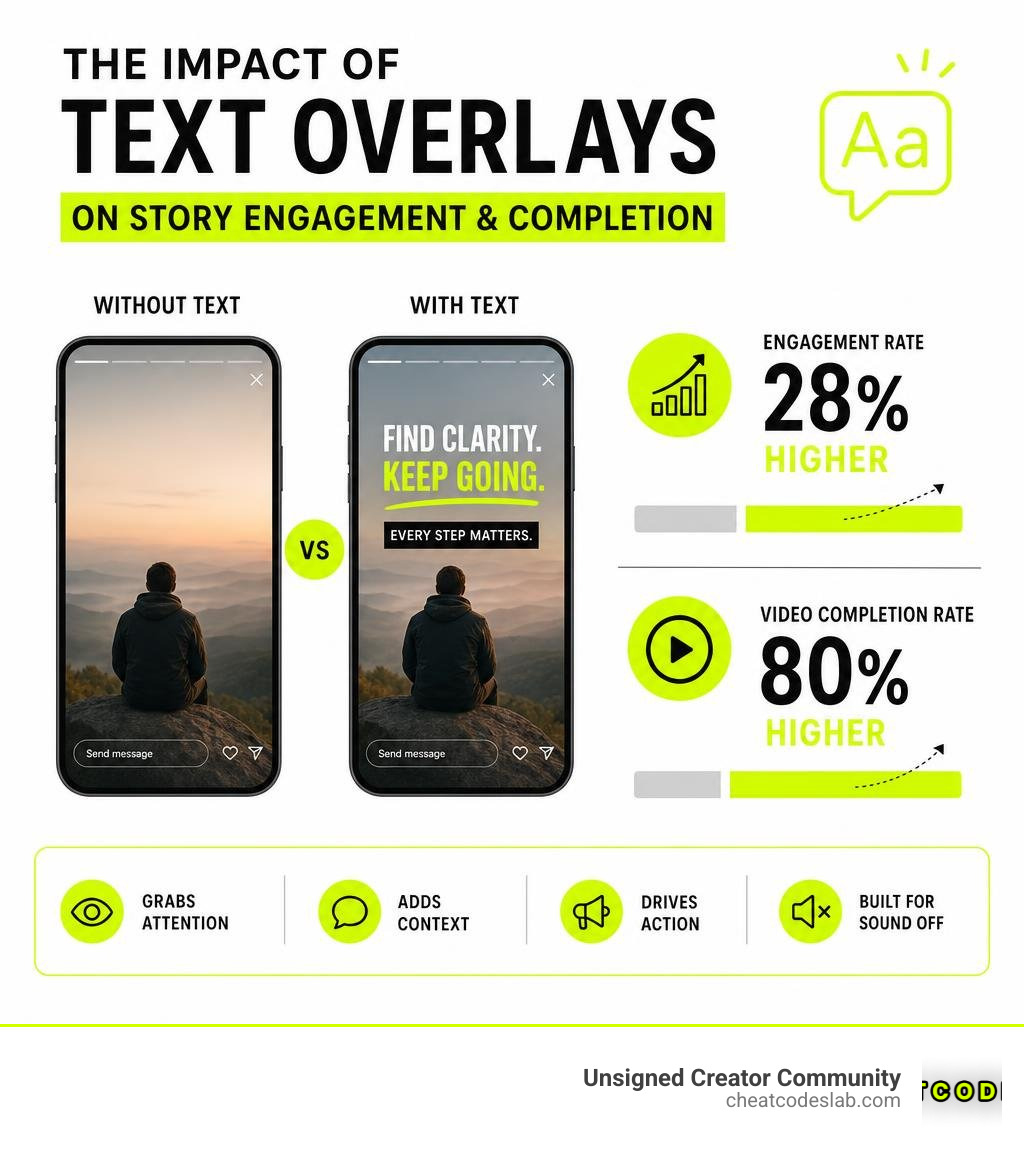
Over 500 million people use Instagram Stories every day — and the ones with text consistently outperform those without. Stories with text overlays see a 28% higher engagement rate, and adding captions alone can boost video completion rates by up to 80%. Whether you’re a creator, marketer, or brand, knowing how to use text effectively on Stories is one of the simplest ways to get more eyes on your content.
Text turns a passive viewer into an engaged one. It adds context, drives action, and makes your Story accessible to people watching without sound — which is most people scrolling in public.
I’m digitaljeff, a content strategist and digital media veteran who has spent over 20 years helping creators and brands grow on emerging social platforms — including building Stories strategies that have contributed to over 1 billion views; everything I share about how to add text to Instagram Story comes from real-world testing at scale. Let’s get into the full guide.
Quick look at add text to instagram story:
How to Add Text to Instagram Story: A Step-by-Step Guide
Adding text to your Instagram Story isn’t just about labeling what’s in the picture. It is a powerful driver of user engagement. When we use the native editor, we are utilizing tools that are directly optimized for mobile screens. Adding text helps clarify your message, tells a story step-by-step, and provides a clear call to action (CTA).
To start, you can easily use the How to Write on Instagram Stories: 3 Quick Ways guide to master the basics. Let’s look at how to get your story set up from the native editor.

Step-by-Step: How to Add Text to Instagram Story Native App Style
Let’s break down the exact steps to add text to instagram story using the built-in tools on your phone:
- Enter Camera Mode or Upload: Open your Instagram app and swipe left from your feed, or tap the + icon next to “Your Story”. You can take a photo/video directly in camera mode or swipe up to choose an existing image or video from your gallery.
- Open the Text Editor: Tap the Aa icon in the top right corner of the screen. A cursor will appear in the middle of your screen, along with your keyboard.
- Type Your Text: Enter your message.
- Choose Your Alignment: Tap the alignment button at the top left of the text screen to toggle between left-aligned, centered, or right-aligned text.
- Adjust Size and Position: Use the vertical slider on the left side of the screen to make your text larger or smaller. Once you tap “Done,” you can also pinch or expand the text with two fingers to resize it, and drag it anywhere on the screen.
- Pick Colors with the Eyedropper Tool: Tap the color wheel at the top. You can choose from a preset color palette or tap the eyedropper tool on the far left. Drag the eyedropper over your photo or video to select a custom color that perfectly matches your background.
If you ever need to clean up your visual workflow before posting, you can refer to this guide on How to edit Instagram Stories to keep your media looking pristine.
Customizing Your Text: Fonts, Colors, and Animations
Instagram’s text editing tools have come a long way since the early days of a single fixed font. As highlighted in Instagram adds what photos have always needed: words | The Verge, the platform has drastically improved its text editor, offering a wide array of new fonts, effects, and animation styles.
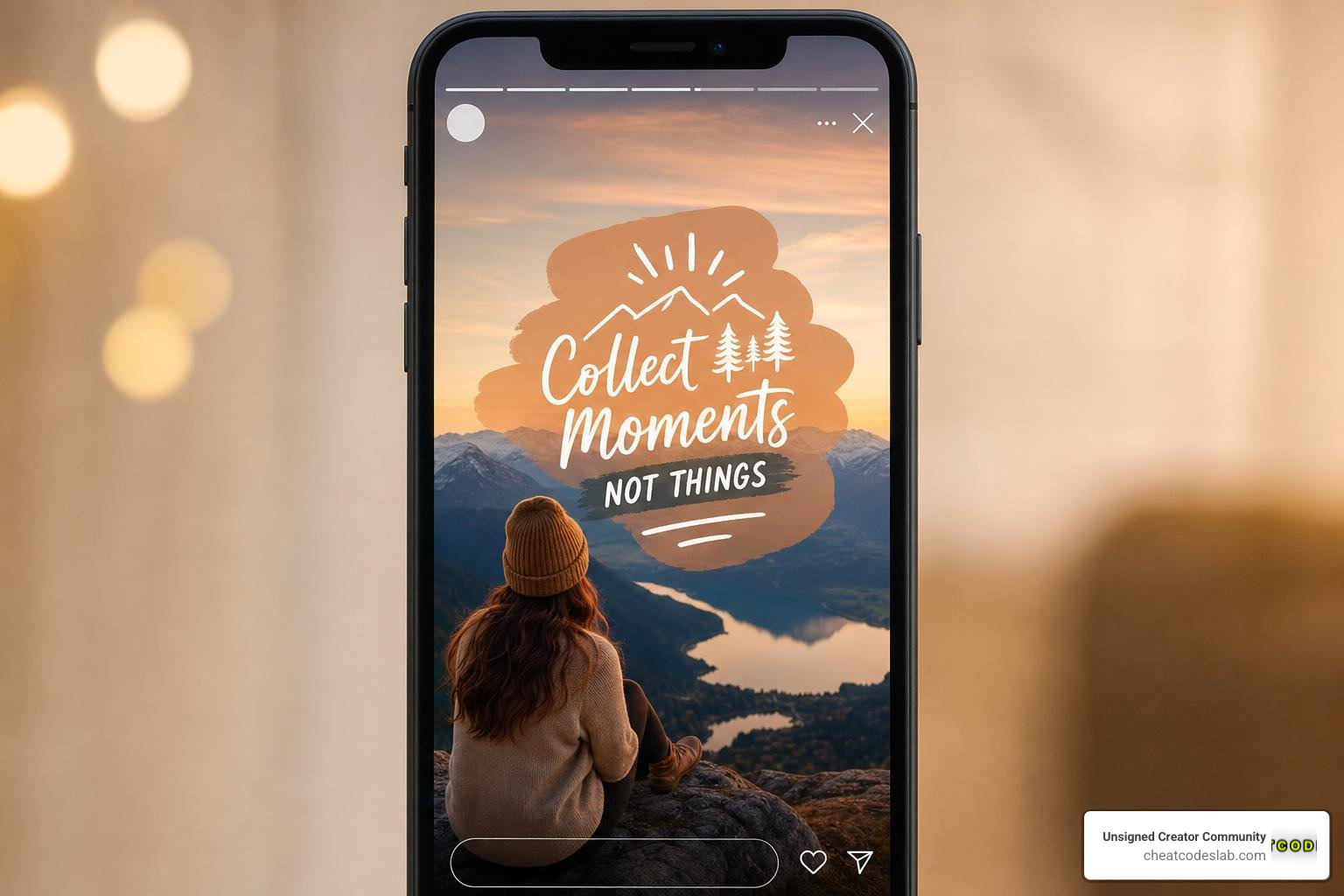
- Font Styles: Instagram offers over a dozen distinct font styles. Swipe left and right across the font menu above your keyboard to choose between styles like Classic, Modern, Neon, Typewriter, and bold editorial fonts.
- Text Backgrounds: Tap the A with stars icon at the top of the screen to add a solid or semi-transparent background box behind your text. This is a lifesaver for busy images where text would otherwise get lost.
- Text Animations: Tap the animated text icon (an “A” with motion lines next to it) to make your text bounce, slide, flicker, or roll onto the screen. Each font style has its own unique, pre-programmed animation.
- Rainbow Text Hack: Want to create a gorgeous gradient or rainbow effect? Select all your text, tap and hold a color on the palette with one thumb, and slowly drag both your text selection cursor and the color selector at the exact same time across the screen.
- Layered Text (Drop Shadow): Type your text in one color and select “Done”. Duplicate the exact text, change the color to a contrasting shade, and layer it slightly offset behind the first text block to create a clean drop-shadow effect.
How to Add Text to Instagram Story Videos with Captions
Did you know that 62% of Instagram users say they engage more with Stories that include text overlays? Even more staggering, adding captions can increase video completion rates by up to 80%. Many people watch Stories on mute while commuting, in meetings, or in public spaces. If you don’t have captions, they will simply swipe away.
To automatically add captions to your talking videos:
- Record or upload your video to the Story editor.
- Tap the Stickers icon (the smiling square post-it note at the top).
- Select the Captions sticker. Instagram will automatically transcribe your audio.
- Tap the text to edit any spelling mistakes or transcription errors.
- Customize the font style, color, and placement of your auto-captions.
For a deeper dive into accessibility, check out How to Add Captions to Instagram Stories in 2025 to keep your audience locked in. If you want to elevate the mood of your video even further, you can easily Add Audio to Instagram Story to run behind your voiceover.
Best Practices for Designing Engaging Story Text
To make sure your text isn’t just present, but highly readable and visually on-brand, we need to stick to a few design rules.
- Respect the Safe Zones: When dragging your text around, Instagram will show blue gridlines. Keep your text within these “safe zones.” Avoid placing text too close to the top (where your profile picture and the time sit) or too close to the bottom (where the message box and share buttons are).
- High Contrast is King: Never place white text over a light background, or dark text over a dark shadow. If the background is too busy, use a solid background strip behind your text to ensure high readability.
- Stick to Your Brand Fonts: To build a recognizable brand, lock down 1 or 2 typography choices and use them consistently.
- Leverage Interactive Elements: Stories with text and interactive stickers (like polls or questions) receive 2x more replies than those without. Use text to ask a direct question, and place a poll sticker right below it.
To fine-tune your account’s back-end settings for maximum reach and engagement, take a look at How to Configure Instagram Advanced Settings in Minutes. And if you’re trying to drive traffic directly to your website, adding a link sticker with a strong text callout is the modern alternative to the classic IG Swipe Up feature.
Creative Hacks to Make Your Text Pop
If you want your Stories to stand out from the sea of generic templates, try these expert creative hacks:
- The Sequenced Reveal: Create a story that reveals text line-by-line with each tap. Start by designing the final slide with all text. Save it to your camera roll. Delete the last line of text, and save that version. Delete the line before it, and save. Finally, upload these images in reverse order so the text “builds” as the user taps through.
- The Halo Effect: Use the brush tool to draw a neon circle or shape around an object or person in your photo. Then, use the eraser tool to erase the parts of the drawing that overlap the front of the object, creating a 3D “halo” wrap-around effect.
- Custom GIFs as Text Accents: Copy any transparent PNG image or custom GIF from your phone’s clipboard and paste it directly into your Story using the native paste option in the text tool.
These visual storytelling rules apply beautifully to other formats too. If you are branching out into video, our guide on Instagram Reels for Beginners and our comprehensive Short Form Reels Strategy will help you scale your views.
Overcoming Native Limitations with Third-Party Tools
While Instagram’s native editor is incredibly convenient, it does have limitations. You cannot control the exact timing of when text blocks appear on your screen, and you cannot import custom brand fonts.
To bypass these limitations, we often use external tools. For example, learning How to Write Text on Instagram Story to Grab Attention: Step By Step via CapCut allows you to edit on your PC or mobile app, add advanced keyframe text animations, apply sound effects, and export high-resolution vertical videos.
Using third-party templates allows you to:
- Control Timing: Make different lines of text pop up at precise seconds.
- Add Sound Effects: Sync a camera-shutter or “whoosh” sound with your text animations.
- Maintain Consistency: Build layouts that look highly polished and professional.
For additional platform-approved resources, you can always check out the official Instagram Creator Tips and Resources page.
Scheduling and Automating Stories with Text
As a busy creator or agency, manually posting Stories every single hour isn’t sustainable. That’s where scheduling and template automation come in.
By using certified toolkits from CheatCodesLab, you can design your Stories with text overlays in advance, save them as high-quality drafts, and schedule them to publish automatically at your peak audience times. This ensures your brand stays active and consistent without you having to constantly watch the clock.
If you’re working with partners or brands, you can also easily coordinate your content by learning how to Add Collaborator on Instagram to amplify your reach across multiple feeds simultaneously.
Ready to unlock the full potential of your social media workflow? Explore CheatCodesLab Instagram Features to discover our certified AI tools and strategic cheat codes designed to help online creators and agencies dominate the algorithm.


About the author


How to Archive Posts on Instagram in 4 Easy Steps
Master archiving on Instagram in 4 easy steps to organize your profile and protect your content.

Beginner’s Guide to 10k free instagram followers app
Discover how a 10k free instagram followers app works, its risks, and safe organic growth strategies for real engagement in 2026.

Beginner’s Guide to Best Instagram Report App
Discover the best Instagram report app for real-time analytics, automated reports, and data-driven decisions in 2026.

How to Master Advanced SEO Search Techniques in 7 Steps
Master advanced search techniques in SEO with 7 proven steps to boost rankings, technical audits, and organic traffic.

Cheat Sheet to the Best Business Apps
Discover the best business apps to streamline operations, boost productivity, and scale your business in 2026.

How to Get Instagram Followers Free APK in 5 Steps
Discover how instagram followers free apk 2026 download works and learn safe organic growth strategies instead of risky third-party tools.
Related
How to Archive Posts on Instagram in 4 Easy Steps
Master archiving on Instagram in 4 easy steps to organize your profile and protect your content.

Beginner’s Guide to Best Search Engine Optimization SEO
Master best search engine optimization SEO with this beginner's guide covering on-page, technical, and AI strategies for higher rankings.

Ultimate Checklist for Social Media Marketing Agency
Discover the ultimate checklist for choosing a social media marketing agency that drives real ROI and growth.

Hot Summer Caption Ideas That Spark Engagement
Discover hot summer caption ideas that boost engagement, from short aesthetic lines to funny unhinged vibes and beach photo dumps.

How to Add Audio to Instagram Story the Right Way
Learn how to add audio clip in Instagram Story using built-in music or your own file with this step-by-step guide.

How to Configure Instagram Advanced Settings in Minutes
Configure advanced setting Instagram options in minutes to boost privacy, media quality, and engagement for your 2026 content strategy.