



Add another photo to instagram story: 4 Creative Tips
Why Settle for One? The Power of Multi-Photo Stories
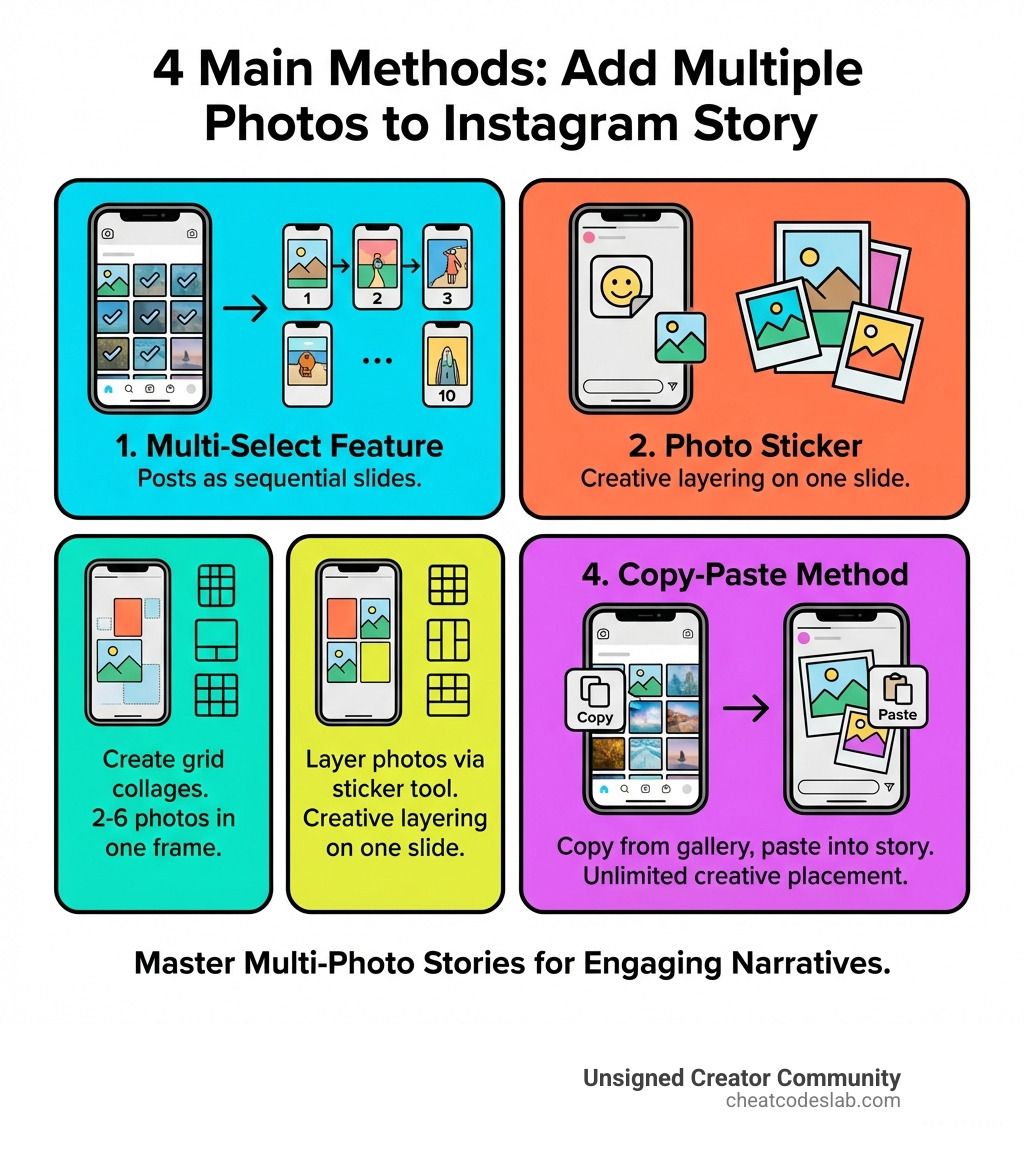
You can add another photo to instagram story using one of these four built-in methods:
- Multi-Select Feature: Choose up to 10 photos from your camera roll to post as separate story slides.
- Photo Sticker: Layer multiple photos on a single story slide using the photo sticker tool.
- Layout Tool: Create grid-style collages with 2-6 photos in one story frame.
- Copy and Paste: Copy images from your gallery and paste them directly into your story.
Instagram Stories are a powerhouse for engagement, with over 500 million daily users. Yet, many creators post single-photo stories because Instagram doesn’t make it obvious how to combine multiple images. The good news is that you don’t need third-party apps to create dynamic, multi-image narratives that keep viewers engaged.
As content strategists, we’ve tested every method to add another photo to instagram story and have seen how it drives real engagement.
Essential add another photo to instagram story terms:
Why bother with more than one photo? A single photo is a snapshot, but multiple photos tell a story. With 62% of people reporting increased brand interest after viewing a story, storytelling is crucial. By learning to add more photos, you can enrich your narrative, boost engagement, and keep your audience hooked.
Did you know that while most brands post 1-3 story frames, those with 7+ frames stand out? Plus, with an 86% completion rate for brand stories, viewers are likely to watch until the end. Let’s explore the practical ways to make your Stories more dynamic.
How to Add Another Photo to Instagram Story: 4 Creative Methods
We’ve all wished we could share multiple moments from an event or showcase a product line without spamming followers. Fortunately, Instagram offers several ways to add another photo to instagram story and transform your content. Let’s explore them step-by-step.
Method 1: The Multi-Select Feature for Sequential Stories
This is the most straightforward way to share multiple moments as a sequence. Instead of posting one photo at a time, you can select several at once to appear as individual, sequential slides. It’s perfect for creating a narrative flow, like a step-by-step guide or a travel diary.
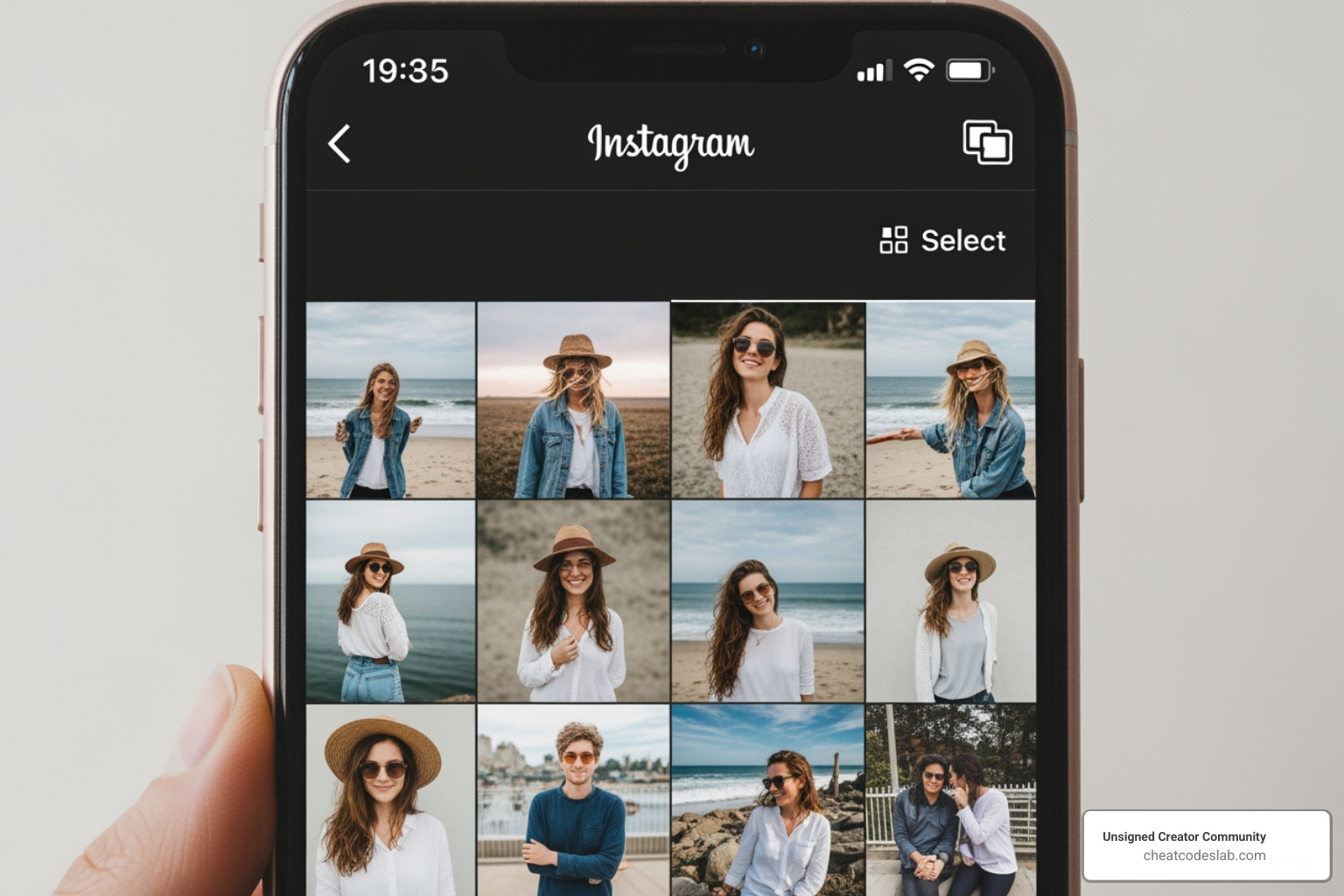
Here’s how to do it:
- Open the Story Camera: From your home screen, swipe right or tap the “+” icon and select “Story.”
- Access Your Gallery: Tap the square gallery icon in the bottom-left corner.
- Activate Multi-Select: Tap the “Select” button (an icon of overlapping squares) in the top-right corner of your gallery.
- Choose Your Photos: Select up to 10 photos and videos. A number will appear on each selection, indicating its order in the story.
- Customize Each Slide: Tap “Next.” You can now edit each photo or video individually. Add text with the caption sticker Instagram, apply filters, or add audio to Instagram story.
- Share Your Story: Once customized, tap “Your Story” to publish the sequence.
Method 2: How to add another photo to instagram story using the Photo Sticker
To combine multiple photos into a single, visually rich story frame, use the Photo Sticker. This feature offers creative freedom to layer images, like a digital scrapbook. It’s perfect for mood boards or showcasing different product angles.
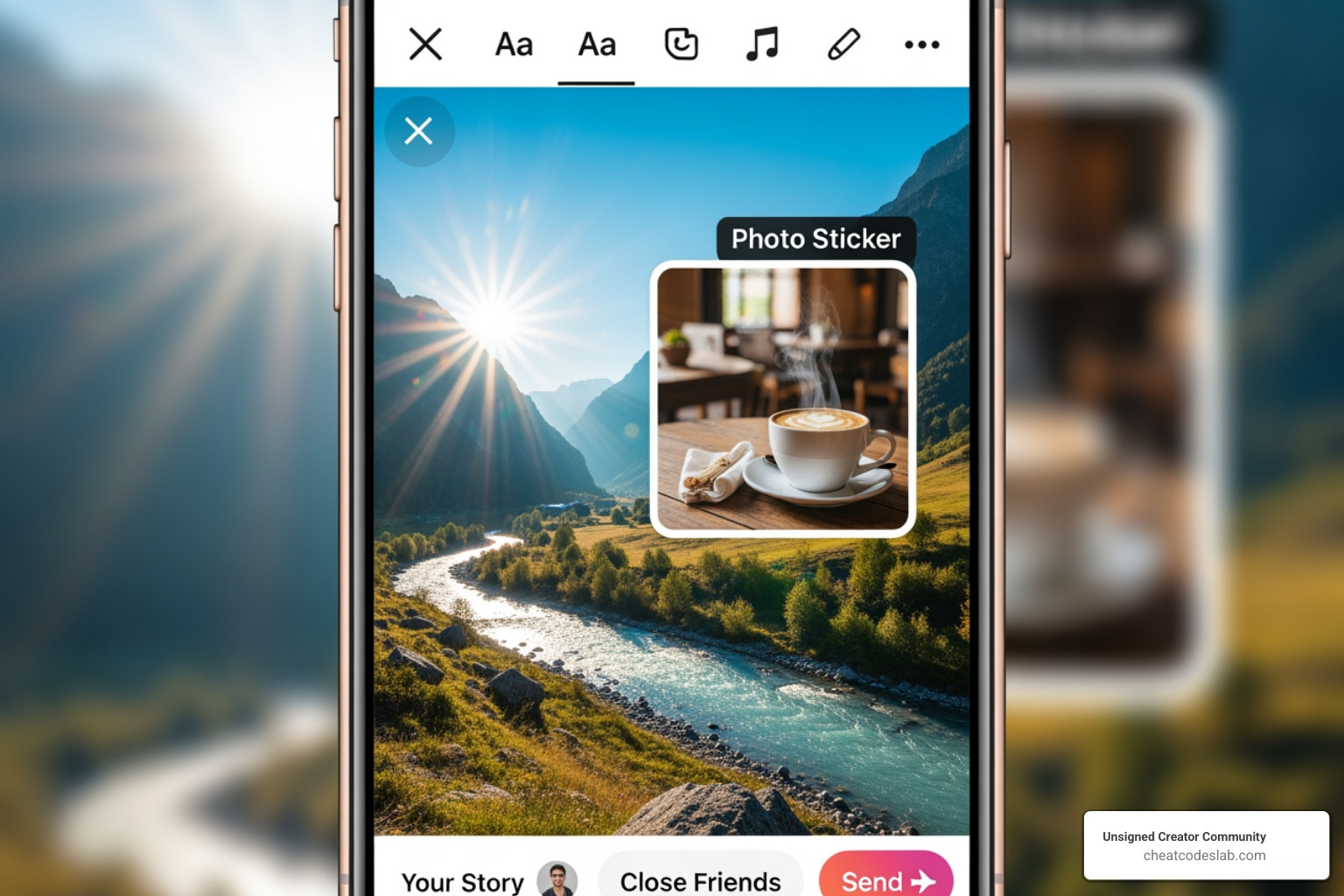
Here’s how to layer photos:
- Start with a Background: Open the Story camera and take a photo, record a video, or select an image from your gallery to use as your canvas.
- Open the Sticker Tray: Tap the square sticker icon at the top of the screen.
- Find the “Photo” Sticker: Scroll and select the “Photo” sticker (it looks like a mini version of your gallery).
- Select Your Layered Photo: Your gallery will open. Choose the photo you want to layer on top.
- Adjust and Customize: The photo will appear on your story. Pinch to resize, drag to move, and rotate with two fingers. Pro-Tip: Tap the photo sticker to change its shape (circle, star, heart, etc.).
- Repeat for More Photos: To add another photo to instagram story, just repeat the process. Tap the sticker icon, select the “Photo” sticker, and choose another image.
- Add Finishing Touches and Share: Arrange your photos, add text or music, and tap “Your Story” to post. For more complex designs, consider using a Best Instagram Collage App before uploading.
Method 3: Using the ‘Layout’ Tool for Grid Collages
For a structured, clean collage, use Instagram’s built-in “Layout” tool. This feature divides your story screen into a grid, which you can fill with different photos. It’s ideal for comparisons, before-and-after shots, or showing product variations.
Here’s how to use the grid:
- Open the Story Camera: Start by opening your story camera.
- Activate the Layout Tool: On the left-hand toolbar, tap the “Layout” icon (it looks like a grid).
- Choose Your Grid Style: A default grid will appear. Tap the “Change Grid” icon to select from various patterns that accommodate up to 6 photos.
- Fill the Grid: Tap each segment of the grid to either take a new photo or select one from your camera roll.
- Confirm and Customize: Once the grid is full, tap the checkmark icon. You can now add text, stickers, or filters to the entire collage.
- Share Your Grid Story: When you’re done, tap “Your Story” to publish. This is one of the most useful Instagram Features for professional-looking content.
Method 4: The Copy-Paste Hack
This clever workaround gives you ultimate freedom in placing photos, bypassing the constraints of other tools. It’s a simple but effective “cheat code” for custom layouts.
Here’s the secret:
- Prepare Your Background: Open the Story camera and set a background photo or video.
- Go to Your Phone’s Gallery: Switch from Instagram to your phone’s photo gallery app.
- Copy an Image: Find the photo you want to add and use your phone’s “Copy” function.
- Return to Instagram Story: Switch back to your open Instagram story draft.
- Paste the Image: An “Add Sticker” pop-up should appear, allowing you to paste the copied image. If not, open the text tool and use the “Paste” function.
- Adjust and Repeat: The copied photo appears as a sticker that you can resize, move, and rotate. To add another photo to instagram story, simply repeat steps 2-5.
- Finalize and Share: Arrange your images, add final touches, and tap “Your Story.”
Best practices to add another photo to instagram story
Knowing how to add another photo to instagram story is the first step. Now let’s cover best practices for quality and strategy.
Can you add a new photo to an existing Instagram story after it has been posted?
No. Once a story is posted, you cannot edit it to add more photos. However, you can always post a new story with additional photos, which will appear sequentially after your previous one.
Limitations: Desktop vs. Mobile
These multi-photo features are designed for mobile devices (iPhone or Android) and are not available on computers.
Are there limitations to adding multiple photos to an Instagram story?
Yes, keep these limits in mind:
- Multi-Select (Method 1): You can select up to 10 photos or videos at once for sequential slides.
- Layout Tool (Method 3): You can combine up to 6 photos into a single grid collage.
- Photo Sticker/Copy-Paste (Methods 2 & 4): There’s no official limit, but avoid overcrowding the screen. Good design is key.
- Clarity: Ensure your layout is clear and not too busy. Give viewers enough time to absorb the details.
Maximizing Engagement with Interactive Elements
To make your multi-photo stories stand out, make them interactive. This signals to Instagram’s algorithm that your content is valuable.
- Polls and Quizzes: Ask your audience to vote on their favorite photo in a collage or test their knowledge on the topic.
- Q&A Stickers: Invite questions about your multi-photo story, whether it’s a travel diary or a new product line.
- Link Stickers: Drive traffic to your website, blog, or product page by including a direct link.
- Captions and Music: Use the caption sticker Instagram to add context and add audio to Instagram story to set the mood.
Combining these methods with engagement strategies turns your pictures into compelling experiences. For more on Instagram’s mission, you can refer to their About Us page.
Lift Your Stories and Grow Your Brand
We’ve explored four powerful methods to add another photo to instagram story: Multi-Select, Photo Sticker, Layout, and the Copy-Paste hack. Each transforms simple snapshots into engaging narratives.
Mastering these techniques helps you:
- Improve Storytelling: Create richer, more detailed narratives.
- Boost Engagement: Keep viewers hooked longer with interactive elements.
- Stand Out: Differentiate your content in a crowded feed.
- Drive Results: Increase brand interest and drive action.
At CheatCodesLab, we’re passionate about empowering creators with the tools and knowledge to succeed. By leveraging these techniques, you’re not just following trends; you’re setting them.
To further optimize your content creation, explore our resources on AI Tools for Instagram. These tools can streamline your workflow, giving you more time to create compelling stories.
Ready to take your content to the next level? Find More info about Creator Apps and open up your full creative potential. Let’s make every story count!


About the author


How to Archive Posts on Instagram in 4 Easy Steps
Master archiving on Instagram in 4 easy steps to organize your profile and protect your content.

Beginner’s Guide to 10k free instagram followers app
Discover how a 10k free instagram followers app works, its risks, and safe organic growth strategies for real engagement in 2026.

Beginner’s Guide to Best Instagram Report App
Discover the best Instagram report app for real-time analytics, automated reports, and data-driven decisions in 2026.
How to Master Advanced SEO Search Techniques in 7 Steps
Master advanced search techniques in SEO with 7 proven steps to boost rankings, technical audits, and organic traffic.

Cheat Sheet to the Best Business Apps
Discover the best business apps to streamline operations, boost productivity, and scale your business in 2026.

How to Get Instagram Followers Free APK in 5 Steps
Discover how instagram followers free apk 2026 download works and learn safe organic growth strategies instead of risky third-party tools.
Related
How to Archive Posts on Instagram in 4 Easy Steps
Master archiving on Instagram in 4 easy steps to organize your profile and protect your content.

Beginner’s Guide to Best Search Engine Optimization SEO
Master best search engine optimization SEO with this beginner's guide covering on-page, technical, and AI strategies for higher rankings.

Ultimate Checklist for Social Media Marketing Agency
Discover the ultimate checklist for choosing a social media marketing agency that drives real ROI and growth.

Hot Summer Caption Ideas That Spark Engagement
Discover hot summer caption ideas that boost engagement, from short aesthetic lines to funny unhinged vibes and beach photo dumps.

How to Add Text to Instagram Story in 5 Easy Steps
Learn how to add text to Instagram Story in 5 easy steps with our native tips and creative text hacks for better engagement.

How to Add Audio to Instagram Story the Right Way
Learn how to add audio clip in Instagram Story using built-in music or your own file with this step-by-step guide.