


How to Add Collaborator on Instagram
What It Means to Add Collaborator on Instagram (and Why It Matters in 2026)
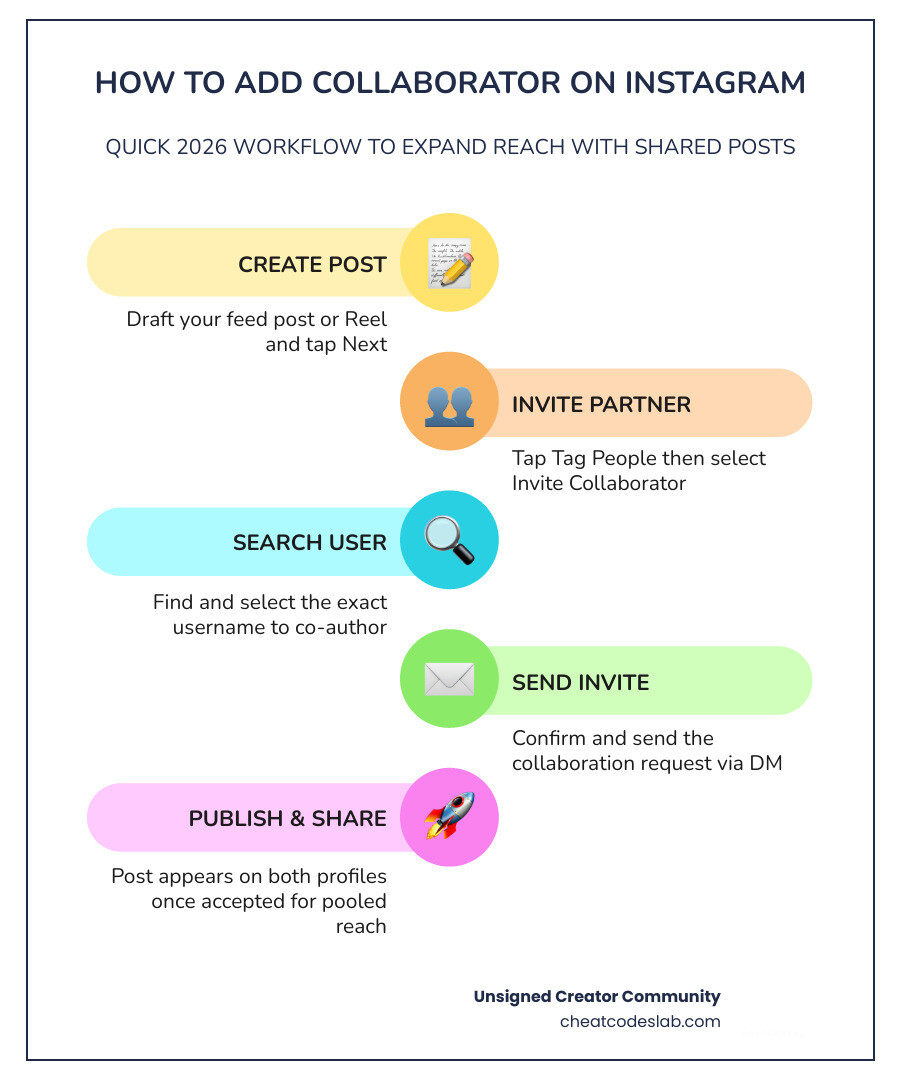
Learning how to add collaborator on Instagram takes less than a minute — here’s the quick version:
- Create your post or Reel and tap Next
- Tap Tag People, then select Invite Collaborator
- Search for the account you want to co-author with
- Tap their username and hit Done
- Publish the post — they’ll receive an invite in their DMs
- Once they Accept, the post appears on both profiles with shared likes, comments, and reach
Already posted? For most accounts, tap the three dots on your post → Edit → Tag People → Invite Collaborator. Note: this option is more widely available on Reels than on feed posts.
Instagram’s collaboration feature launched in 2021 and quietly became one of the most powerful organic growth tools on the platform. Instead of a post living on just one profile, a collab post appears on both co-authors’ feeds — pooling followers, engagement, and reach in one shared piece of content. For creators and marketers trying to grow without paid ads, that’s a big deal.
In 2026, with algorithm competition fiercer than ever, co-authoring content is no longer just a nice-to-have. It’s a smart strategy.
I’m digitaljeff — over the past 20 years I’ve helped top personal brands scale their content distribution across every major social platform, generating over 1 billion views in the last 12 months alone, and the collab tools I’ve used to add collaborator on Instagram have been central to that growth. Let’s break down exactly how to use this feature — before and after posting — so you can start putting it to work right away.
Glossary for add collaborator on instagram:
How to Add Collaborator on Instagram Before and After Posting
The magic of the “Collab” feature lies in its ability to create a single, unified post that lives in two (or more) places at once. Unlike traditional tagging, where a post is hidden away in the “Tagged Photos” tab of the other person’s profile, a collaborative post sits front and center on the main grid of every person involved.
When you add collaborator on Instagram, you aren’t just giving someone a shoutout; you are co-creating. This means the likes, comments, and shares are pooled together. If your partner’s audience loves the post, those likes count toward your post’s total, signaling to the Instagram algorithm that your content is high-value.
At CheatCodesLab, we’ve seen that this shared feed approach is the fastest way to bridge the gap between two different communities. Whether you are using the mobile app or a desktop workflow, understanding the nuances of Instagram Features like this can double or even triple your exposure overnight.
Step-by-Step Guide to Add Collaborator on Instagram Before Publishing
The best time to add a collaborator is during the initial upload process. This ensures the invitation is sent the moment you hit “Share,” allowing for a seamless launch.
- Prepare Your Content: Start by creating a new post, Reel, or carousel. Apply your filters and edits, then tap Next.
- Access the Tagging Menu: On the final share screen (where you write your caption), look for the Tag People option.
- Invite Collaborator: You will see two options: “Add Tag” and “Invite Collaborator.” Tap Invite Collaborator.
- Search for the Account: Type the handle of the user you want to partner with. You can now add up to 20 collaborators on a single post in 2026, though limits can vary depending on your specific account type.
- Finalize: Once you’ve selected the names, tap Done.
- Publish: Write your caption and hit Share.
According to How to Add Collaboration in an Instagram Post, the invitation is only sent once the post is live. Your partner won’t see the request while the post is still in your “Drafts” folder.

Can You Add Collaborator on Instagram After Posting?
This is the most common question we get: “I forgot to add my partner! Do I have to delete and repost?”
In the past, the answer was a frustrating “Yes.” However, recent updates in 2026 have made it possible for many accounts to Add Collaborator Instagram After Posting.
To try adding a collaborator retroactively:
- Go to your published post or Reel.
- Tap the three dots in the top right corner.
- Select Edit.
- Tap Tag People (or the small tag icon).
- Look for Invite Collaborators.
If you see this option, you’re in luck! If you don’t, it means the feature hasn’t rolled out to your specific account or post type yet. In those cases, you might need to use workarounds mentioned by How to Add a Collaborator on Instagram After Posting ?, such as tagging them in the photo and the caption, or sharing the post to your Story and asking them to do the same. If the collaboration is high-stakes (like a paid brand deal), your best bet is often to delete and repost correctly.
How to Accept or Decline a Collaboration Invitation
If you are on the receiving end of a request, you need to know where to look. Invitations don’t always appear as a standard push notification; they usually land in your Instagram Chat Messenger or your “Activity” tab.
- Check your DMs: Most collab invites arrive as a direct message from the original poster.
- Review the Request: Tap the message, then tap Review.
- Accept or Decline: You will see a preview of the post. If you accept, the post will immediately appear on your profile grid. If you decline, the post remains on the original author’s profile, but your name will be removed, and it won’t show up on your feed.
Once you accept, you also share the Ig Share Post To Story benefits, as both audiences can now easily amplify the content.
Maximizing Reach and Troubleshooting Instagram Collabs
Collaborating is a win-win, but it requires strategy. The goal isn’t just to tag a random celebrity; it’s to find a partner whose audience would actually enjoy your content. When done right, collaborative posts create “social proof”—if Follower A sees that their favorite creator trusts you, they are much more likely to hit that follow button.
Key Benefits and Algorithm Impact of Collaborative Posts
Why go through the extra steps to add collaborator on Instagram? The numbers speak for themselves.
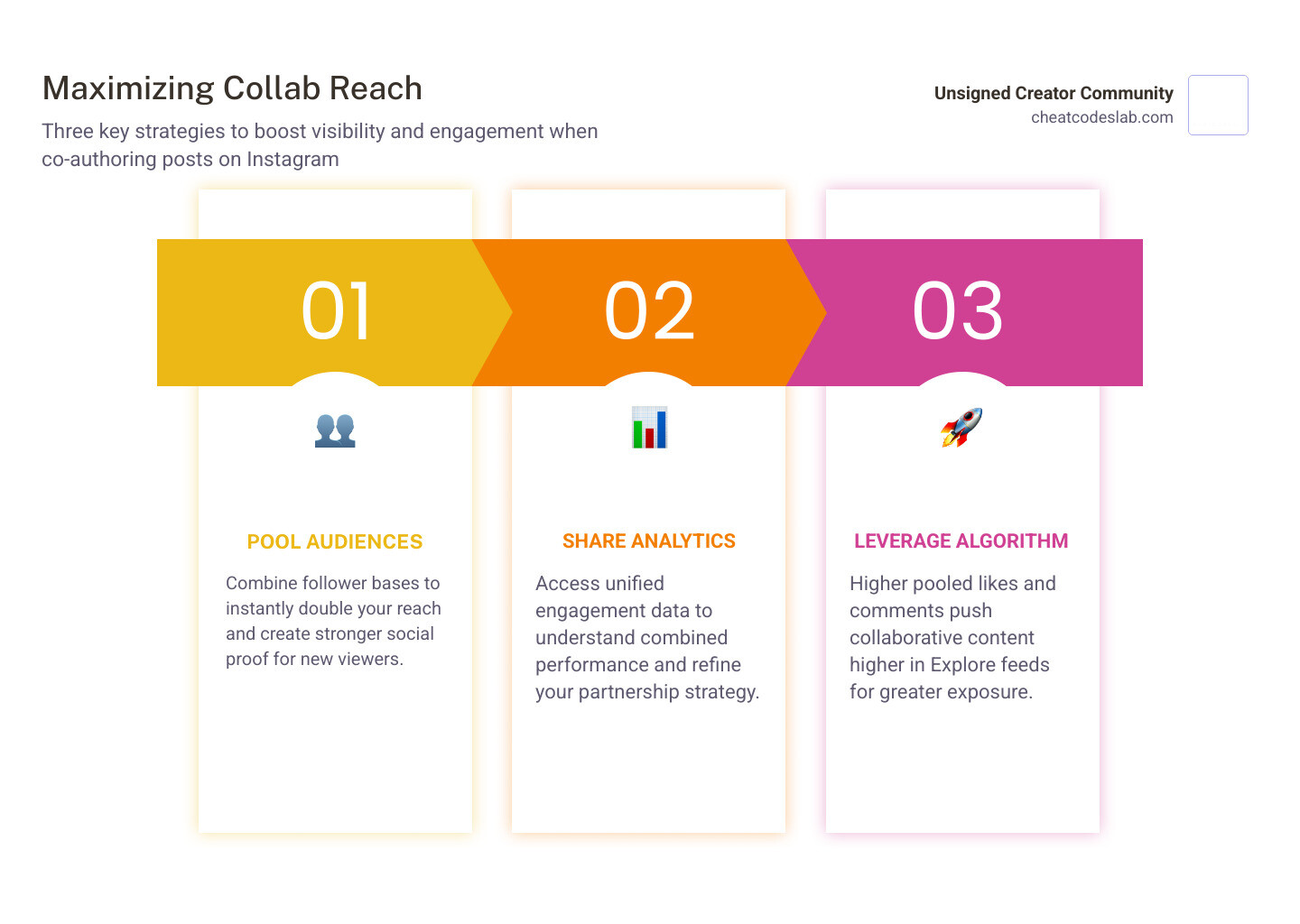
- Pooled Engagement: Instead of having 50 likes on your post and 50 on theirs, you have one post with 100 likes. This higher number pushes the post higher in the Explore feed.
- Combined Reach: Your post is shown to a segment of your followers and a segment of theirs. This effectively doubles your potential “initial” audience.
- Shared Analytics: Both parties can see how the post is performing. This transparency is vital for brand partnerships and influencer marketing.
- Unified Comment Threads: All conversations happen in one place, making it easier for you and your partner to engage with fans and boost the post’s “stickiness” in the algorithm.
As noted in How to Add a Collaborator on Instagram (and the Benefits), this feature nurtures professional relationships and helps creators tap into cultural moments more effectively than solo posting.
Requirements and Limitations for Co-Authoring Content
While powerful, the collab tool has some guardrails you should be aware of. We’ve summarized the main differences between tagging and collaborating in the table below:
| Feature | Tagging | Collaboration |
|---|---|---|
| Grid Visibility | Only in “Tagged” tab | Appears on Main Grid |
| Follower Reach | Primarily your followers | Both sets of followers |
| Engagement | Metrics are separate | Metrics are pooled |
| Consent | Not required (usually) | Must be accepted via DM |
| Maximum Users | Up to 20 tags | Up to 20 collaborators (varies) |
Important Requirements:
- Public Accounts: For the most part, Help Center documentation suggests that both accounts should be public. If a private account starts a collab, only their mutual followers can see it, which defeats the purpose of “reach expansion.”
- Ownership: The original poster is the “owner.” If they delete the post, it disappears from the collaborator’s profile too.
- Stories: Currently, you cannot use the official “Collab” co-authoring feature for Stories; it is limited to Feed posts and Reels.
Troubleshooting Common Issues with Instagram Collaborations
Sometimes things don’t go according to plan. If you’re struggling to add collaborator on Instagram, check these common fixes:
- Missing “Invite Collaborator” Button: This is usually due to an outdated app. Head to the App Store or Google Play and update to the 2026 version.
- Account Restrictions: If the person you are trying to invite has “Allow Tags/Collabs” turned off in their privacy settings, their name won’t appear. Ask them to check their Settings → Tags and Mentions.
- Age-Restricted Content: If one account is set to a specific age minimum and the other isn’t, Instagram may block the collaboration to protect younger users.
- Shadowbans: While rare, if an account has significant violations, Instagram may temporarily restrict their ability to use advanced Instagram Features.
- Cache Issues: If the app is glitching, try clearing your cache or logging out and back in.

At CheatCodesLab, we believe that mastering these small technical hurdles is what separates professional creators from amateurs. By learning how to Master Instagram collaboration with CheatCodesLab, you ensure that every piece of content you produce has the highest possible chance of going viral.
Whether you are a photographer crediting a model, a brand partnering with an influencer, or just two friends sharing a memory, the ability to add collaborator on Instagram is a game-changer for your digital presence. Start reaching out to potential partners today—your next big growth spurt is just one “Accept” button away!


About the author

How to Archive Posts on Instagram in 4 Easy Steps
Master archiving on Instagram in 4 easy steps to organize your profile and protect your content.

Beginner’s Guide to 10k free instagram followers app
Discover how a 10k free instagram followers app works, its risks, and safe organic growth strategies for real engagement in 2026.

Beginner’s Guide to Best Instagram Report App
Discover the best Instagram report app for real-time analytics, automated reports, and data-driven decisions in 2026.
How to Master Advanced SEO Search Techniques in 7 Steps
Master advanced search techniques in SEO with 7 proven steps to boost rankings, technical audits, and organic traffic.

Cheat Sheet to the Best Business Apps
Discover the best business apps to streamline operations, boost productivity, and scale your business in 2026.

How to Get Instagram Followers Free APK in 5 Steps
Discover how instagram followers free apk 2026 download works and learn safe organic growth strategies instead of risky third-party tools.
Related
How to Archive Posts on Instagram in 4 Easy Steps
Master archiving on Instagram in 4 easy steps to organize your profile and protect your content.

Beginner’s Guide to Best Search Engine Optimization SEO
Master best search engine optimization SEO with this beginner's guide covering on-page, technical, and AI strategies for higher rankings.

Ultimate Checklist for Social Media Marketing Agency
Discover the ultimate checklist for choosing a social media marketing agency that drives real ROI and growth.

Hot Summer Caption Ideas That Spark Engagement
Discover hot summer caption ideas that boost engagement, from short aesthetic lines to funny unhinged vibes and beach photo dumps.

How to Add Text to Instagram Story in 5 Easy Steps
Learn how to add text to Instagram Story in 5 easy steps with our native tips and creative text hacks for better engagement.

How to Add Audio to Instagram Story the Right Way
Learn how to add audio clip in Instagram Story using built-in music or your own file with this step-by-step guide.