



How to Archive Posts on Instagram in 4 Easy Steps
What Archiving on Instagram Actually Does (And Why It Matters)
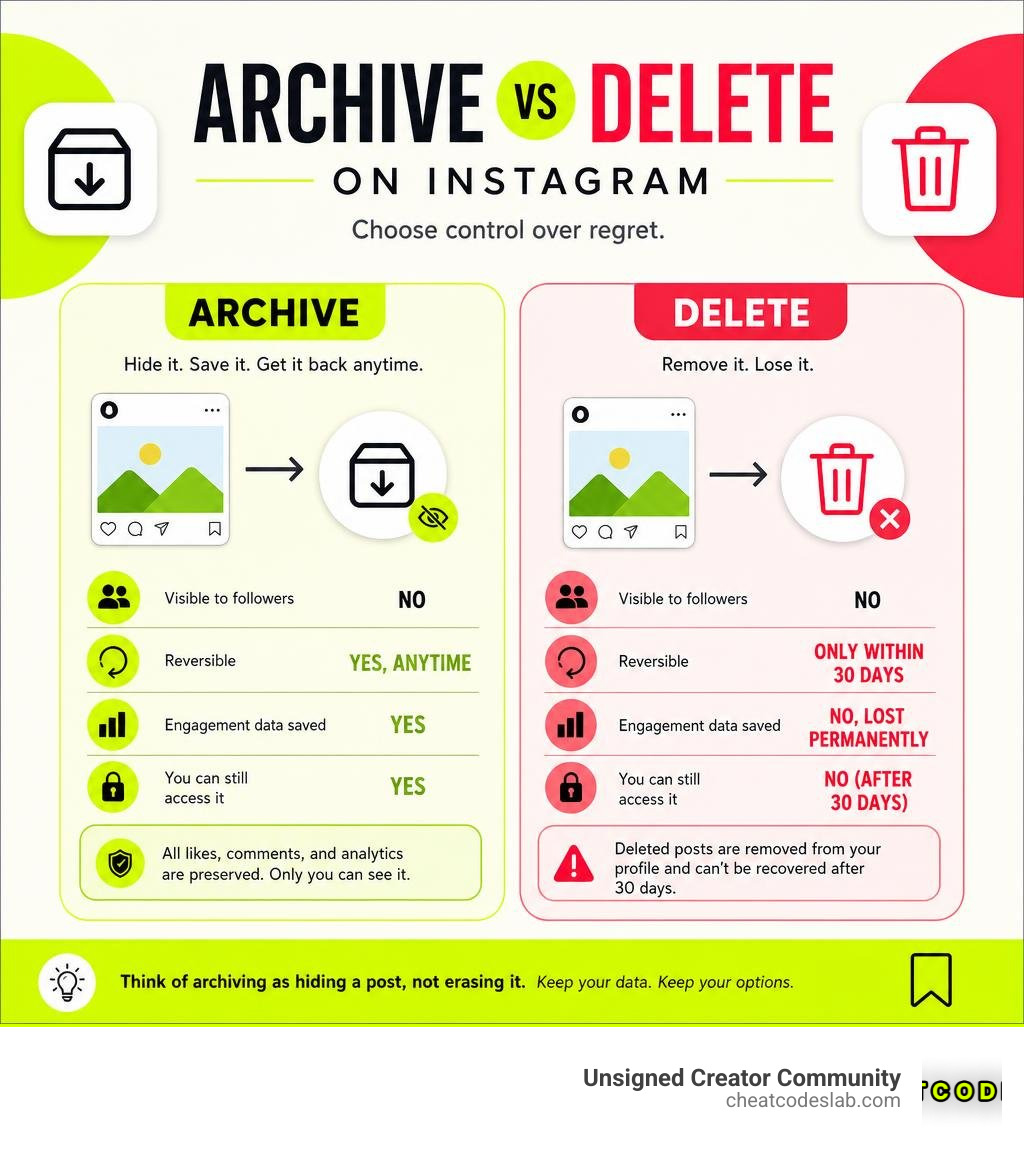
Archiving on Instagram lets you hide any post from your public profile without permanently deleting it. Here’s a quick breakdown before we dive in:
How to archive a post on Instagram:
- Open the post on your profile
- Tap the three-dot menu (⋮) in the top right corner
- Select Archive
- To view it later, go to your profile → three-line menu → Archive
Your archived posts stay on Instagram’s servers. All likes, comments, and analytics are preserved. Only you can see them.
Key difference — Archive vs. Delete:
| Archive | Delete | |
|---|---|---|
| Visible to followers | No | No |
| Reversible | Yes, anytime | Only within 30 days |
| Engagement data saved | Yes | Lost permanently |
| You can still access it | Yes | No (after 30 days) |
Think of archiving as hiding a post, not erasing it.
It’s a simple but powerful feature — and a lot of creators aren’t using it to its full potential. Whether you want to clean up your grid, rebrand your profile, or quietly remove a post without losing its data, archiving gives you that flexibility.
Instagram introduced the archive feature back in 2017, and since then it’s become one of the most useful tools for managing how your profile looks without making permanent decisions you might regret.
I’m digitaljeff, a content strategist and tech entrepreneur with over 20 years of experience helping top creators and brands scale their content on social media — and archiving on Instagram is one of those underrated features I consistently recommend as part of a clean, intentional content strategy. Let’s walk through exactly how to use it.
Learn more about archiving on instagram:
How to Master Archiving on Instagram in 4 Easy Steps
Maintaining a polished grid aesthetic is a top priority for creators and brands in July 2026. As our brand evolution progresses, the content we shared two years ago might not match our current style, message, or color palette.
Instead of permanently deleting your hard work, mastering archiving on instagram allows you to manage your content lifecycle gracefully. You can hide outdated posts, seasonal campaigns, or temporary giveaways while keeping your background performance metrics completely intact.
What is Archiving on Instagram and How Does It Work?
When you archive a post, it immediately vanishes from your profile grid and public visibility. However, it does not disappear from Instagram’s database.
All of your hard-earned engagement data—including comments, likes, shares, and detailed creator analytics—remains preserved in your private archive folder.
Here is how the Instagram algorithm treats archived content:
- No Feed Distribution: Once a post is archived, it will not appear in anyone’s feed, search results, or Explore pages.
- Chronological Restoration: When you unarchive a post, it returns to its original chronological spot on your grid. It does not get bumped to the top of your profile as a new post, nor does it spam your followers’ feeds with a new notification.
- The “Archive Posting” Trend: Some users leverage this functionality for a practice called “archive posting.” They publish a photo and immediately archive it so it doesn’t broadcast to their followers’ feeds. Weeks or months later, they unarchive it so it sits quietly on their profile grid to maintain a curated look without the social anxiety of immediate public feedback.
For businesses, archiving serves as an essential tool for PR crisis management. If a post receives unexpected backlash or contains an error, archiving it allows your team to take it offline immediately while preserving the comment data and metadata for legal or analytical review.
Step-by-Step: How to Archive and Unarchive Your Content
Managing your digital clutter takes only a few taps. Here is how to handle posts, Stories, and Reels on your mobile device.
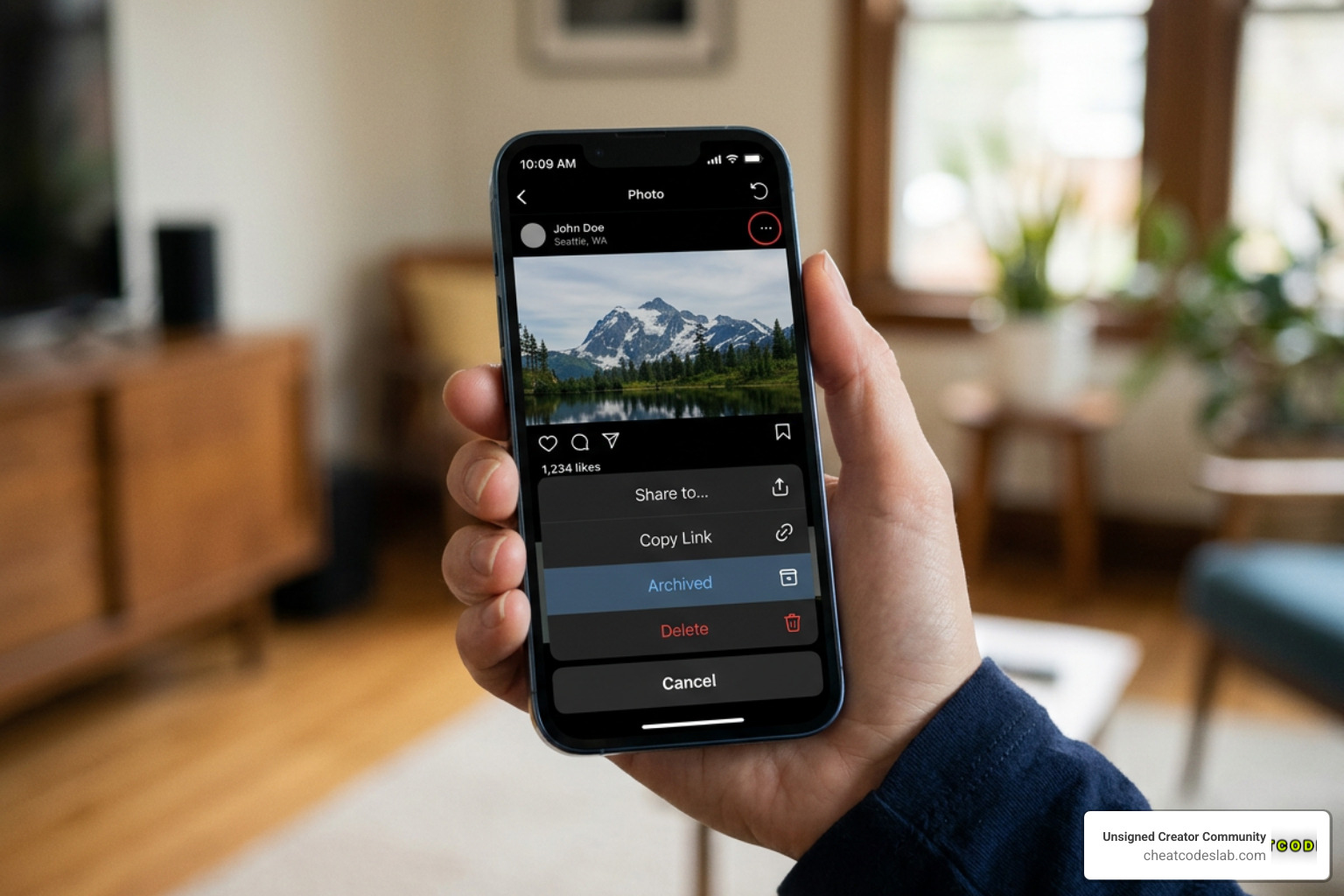
Archiving Feed Posts and Reels
- Navigate to your profile and tap the post or Reel you wish to hide.
- Tap the three-dot icon in the upper right-hand corner of the post.
- Select Archive. The post will disappear from your grid instantly.
Unarchiving Feed Posts and Reels
- Go to your profile and tap the three-line menu (hamburger icon) in the top right corner.
- Select Archive (it may be housed under “Your Activity” depending on your app version).
- Tap the dropdown menu at the top of the screen to switch between Stories Archive, Posts Archive, and Live Archive.
- Choose Posts Archive, select the post you want to restore, tap the three dots, and select Show on Profile.
Managing Your Stories Archive
By default, Instagram automatically saves your daily Stories to your archive once their 24-hour public window expires. To ensure this setting is enabled:
- Go to your profile and open the three-line menu.
- Tap Settings and Privacy.
- Scroll down and look for Archiving and Downloading (to learn more about optimizing these options, check out our guide on How to Configure Instagram Advanced Settings in Minutes).
- Toggle on Save Story to Archive.
If you ever need to edit your content before deciding to archive it, such as removing a slide from a multi-photo post, you can read our walkthrough on How to Edit a Posted Instagram Carousel in 5 Steps.
The Risks of Relying on the Native Archiving on Instagram Feature
While the built-in archive is incredibly convenient, treating it as your only long-term storage solution is a significant risk.
Instagram’s archive is a visibility toggle, not a secure backup system.
Here is why relying solely on Instagram’s servers can backfire:
- Account Vulnerabilities: If your account is hacked or compromised, bad actors can permanently delete your entire archive in seconds.
- Platform Terms and Outages: Policy violations, accidental automated bans, or platform-wide glitches can lock you out of your account indefinitely, erasing years of personal or business history.
- Historical Data Losses: Over the years, users have reported older archived posts from the early 2010s occasionally disappearing or losing their high-resolution assets due to server migrations.
- Accidental Toggles: If the “Save Story to Archive” setting is accidentally turned off during an app update, any Stories posted during that window will be lost forever once their 24-hour limit expires.
For developers, technical creators, or brands managing high-volume assets, native tools are rarely enough. Advanced users often turn to open-source solutions to pull their content locally.
For instance, the command-line tool detailed in the instagram-archiver v0.4.1 documentation allows you to run automated scripts to back up profiles you have access to.
By leveraging the developer resources on the Tatsh/instagram-archiver GitHub repository, you can programmatically save images, videos, and comments directly to a local hard drive or secure server.
Best Practices for Managing Your Instagram Content Strategy
A successful content strategy balances active publishing with smart asset organization. To stay ahead, we must treat our social media grids like dynamic storefronts rather than static scrapbooks.
How to Properly Back Up and Export Your Instagram Data
To keep your high-quality media safe from platform instability, you should establish a routine backup schedule. We recommend downloading your official data package directly from Meta at least once a quarter.
How to Download Your Official Instagram Data
- Open Instagram, go to your profile, and open the three-line menu.
- Navigate to Accounts Center > Your Information and Permissions.
- Tap Download Your Information.
- Request a download, select your account, and choose your preferred format (HTML is highly recommended for easy local browsing).
For a deeper dive into preserving your media without compression, check out Kartik Ahuja’s detailed guide on How to Archive Instagram Content for Long-Term Access (Without Losing Quality) – Kartik Ahuja.
If you prefer automated, command-line local backups using your browser cookies, you can explore the technical setup at instagram-archiver | Save Instagram content you have access to., which helps you run background downloads to preserve your captions and community comments.
Additionally, don’t underestimate physical backups. Over the past decade, hundreds of thousands of creators have printed physical photo books of their feeds. A physical print remains one of the most reliable and permanent archival formats available.
When to Archive, Delete, or Preserve Your Posts
Deciding what to do with older content can be tough. We use a simple framework to help our community decide when to archive, when to delete, and when to leave posts exactly where they are.
1. When to Archive
- Seasonal Campaigns & Giveaways: Once a holiday promotion or contest ends, archive the post. This prevents users from trying to enter expired contests while keeping your promotional engagement data safe.
- Visual Rebranding: If you are shifting your brand colors or photography style, archive the old aesthetic to give new profile visitors a cohesive first impression.
- Old Personal Content: If you are transitioning a personal account into a professional creator hub, archive college-era photos or overly casual updates.
2. When to Delete
- Inaccurate or Outdated Information: If a post contains a major factual error, outdated pricing, or a broken link that cannot be edited, delete it to protect your brand’s credibility.
- Low-Quality Test Posts: Accidental uploads, duplicate posts, or low-resolution test stories should be deleted immediately.
3. When to Preserve
- High-Performing Evergreen Content: Even if a post is old, if it continues to drive traffic, save it.
- Milestones and Brand History: Keep your launch announcements, major team hires, and community celebrations visible. They build trust and show your brand’s evolution over time.
For more insights on maximizing your reach and managing your profile assets, explore our comprehensive breakdown of essential Instagram Features.
By treating archiving on instagram as a core part of your publishing workflow, you can keep your feed fresh, protect your brand’s history, and ensure you never lose your valuable social media memories.

About the author


How to Archive Posts on Instagram in 4 Easy Steps
Master archiving on Instagram in 4 easy steps to organize your profile and protect your content.

Beginner’s Guide to 10k free instagram followers app
Discover how a 10k free instagram followers app works, its risks, and safe organic growth strategies for real engagement in 2026.

Beginner’s Guide to Best Instagram Report App
Discover the best Instagram report app for real-time analytics, automated reports, and data-driven decisions in 2026.
How to Master Advanced SEO Search Techniques in 7 Steps
Master advanced search techniques in SEO with 7 proven steps to boost rankings, technical audits, and organic traffic.

Cheat Sheet to the Best Business Apps
Discover the best business apps to streamline operations, boost productivity, and scale your business in 2026.

How to Get Instagram Followers Free APK in 5 Steps
Discover how instagram followers free apk 2026 download works and learn safe organic growth strategies instead of risky third-party tools.
Related

Beginner’s Guide to Best Search Engine Optimization SEO
Master best search engine optimization SEO with this beginner's guide covering on-page, technical, and AI strategies for higher rankings.

Ultimate Checklist for Social Media Marketing Agency
Discover the ultimate checklist for choosing a social media marketing agency that drives real ROI and growth.

Hot Summer Caption Ideas That Spark Engagement
Discover hot summer caption ideas that boost engagement, from short aesthetic lines to funny unhinged vibes and beach photo dumps.

How to Add Text to Instagram Story in 5 Easy Steps
Learn how to add text to Instagram Story in 5 easy steps with our native tips and creative text hacks for better engagement.

How to Add Audio to Instagram Story the Right Way
Learn how to add audio clip in Instagram Story using built-in music or your own file with this step-by-step guide.

How to Configure Instagram Advanced Settings in Minutes
Configure advanced setting Instagram options in minutes to boost privacy, media quality, and engagement for your 2026 content strategy.